Quorum · The Chapter Platform
Quorum for Zoom
Adding, using and removing the app · Updated November 18, 2026
Quorum is the platform an executive peer chapter runs on. The Quorum app for Zoom connects the chapter’s own Zoom account to the chapter’s Quorum console. Quorum then counts who attended an event by video, and it brings the event’s cloud recording to the chapter office for review.
The short version. The Chapter Manager connects Zoom once, in Settings. Quorum reads attendance reports and cloud recordings for meetings whose link is on a Quorum event. It never creates, changes or deletes a meeting. You can disconnect in Quorum or remove the app in Zoom at any time.
Before you start
- Your chapter runs on Quorum. The app works only with a chapter’s Quorum console. A chapter signs up at quorum.rsvp/begin.
- In Quorum you are the chapter’s Chapter Manager.
- In Zoom you are the owner or an admin of the chapter’s Zoom account.
- The Zoom account has a Pro plan or higher. Zoom gives attendance reports and cloud recordings to paid plans only.
Add the app
- Sign in to your chapter’s Quorum console.
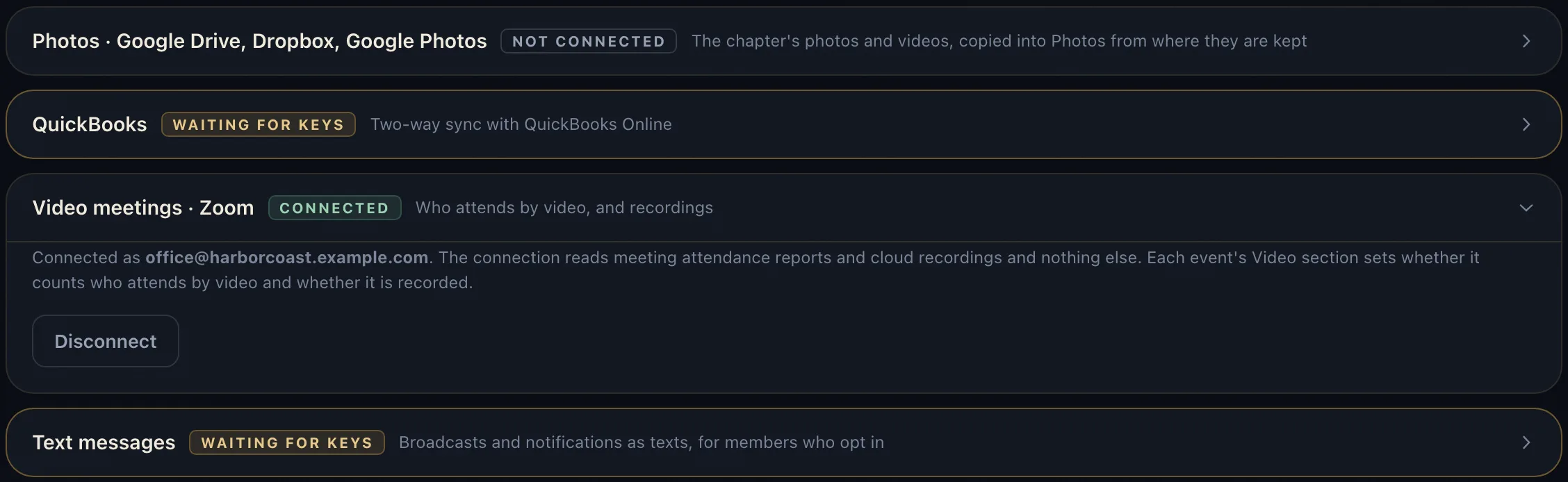
- Open Settings, then Office & connections, and open Video meetings · Zoom.
- Press Connect Zoom. Zoom’s sign-in page opens.
- Sign in to Zoom as the account’s owner or an admin. Read what Quorum asks for and press Allow.
- Zoom sends you back to the console. The card reads CONNECTED and names the Zoom account.
What Quorum reads
- The user who connected. Their email and the account’s id, so the card can name the account. Zoom scope
user:read:user:admin. - Meeting participant reports. Who joined a meeting, when, and for how long. Zoom scope
report:read:list_meeting_participants:admin. - Cloud recording files. The recording of an event set to Record it. Zoom scope
cloud_recording:read:list_recording_files:admin.
Zoom also tells Quorum when a meeting ends, when a person joins or leaves, and when a recording is ready. Quorum acts only on a meeting whose link is on a Quorum event. It ignores every other meeting on the account.
Count who attends by video
- In the console open Chapter Events and open the event.
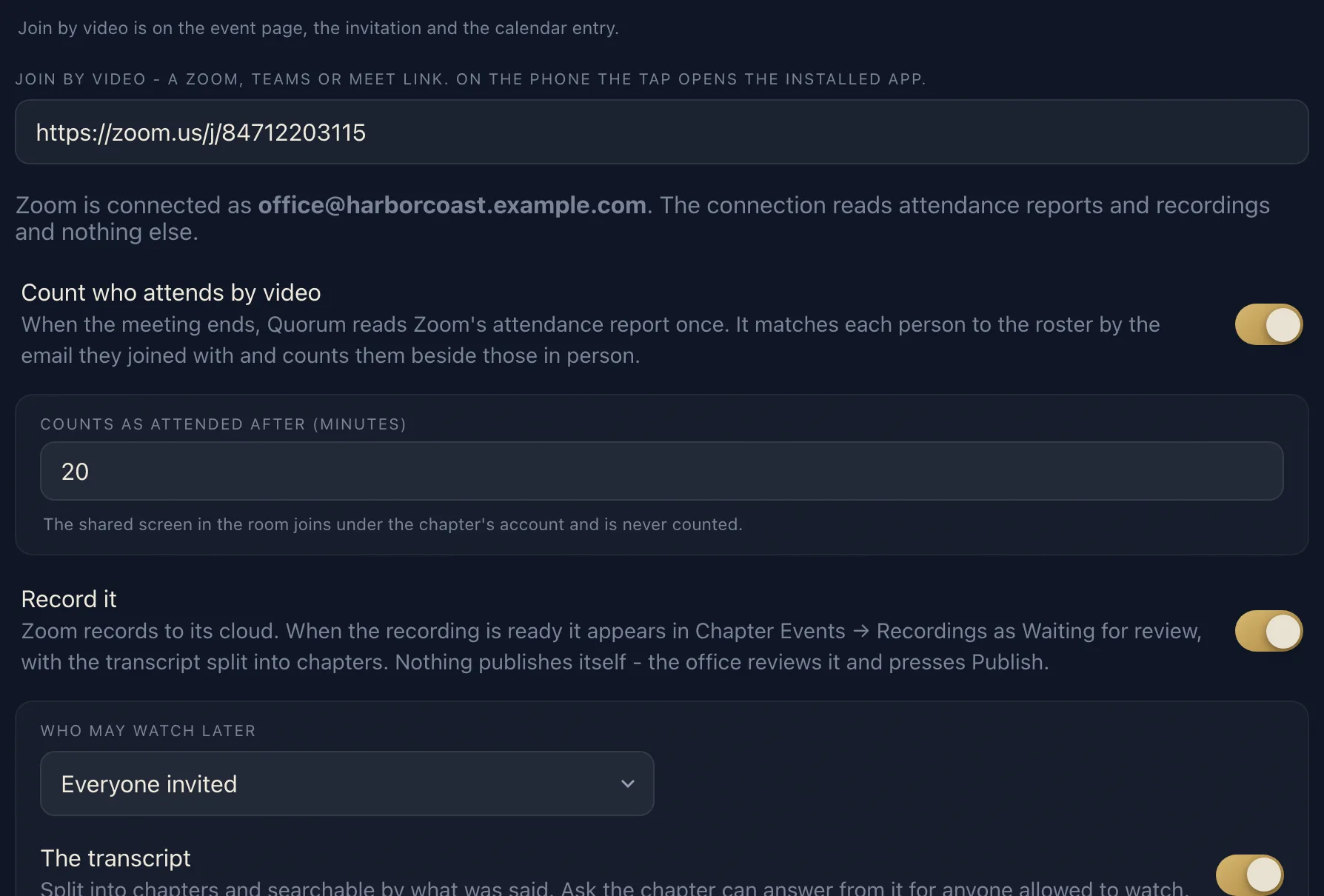
- Open its Video section and paste the Zoom meeting’s link under Join by video.
- Turn on Count who attends by video and set the minutes a person must stay to count. The default is 20.
- Save the event and hold the meeting in Zoom as usual.
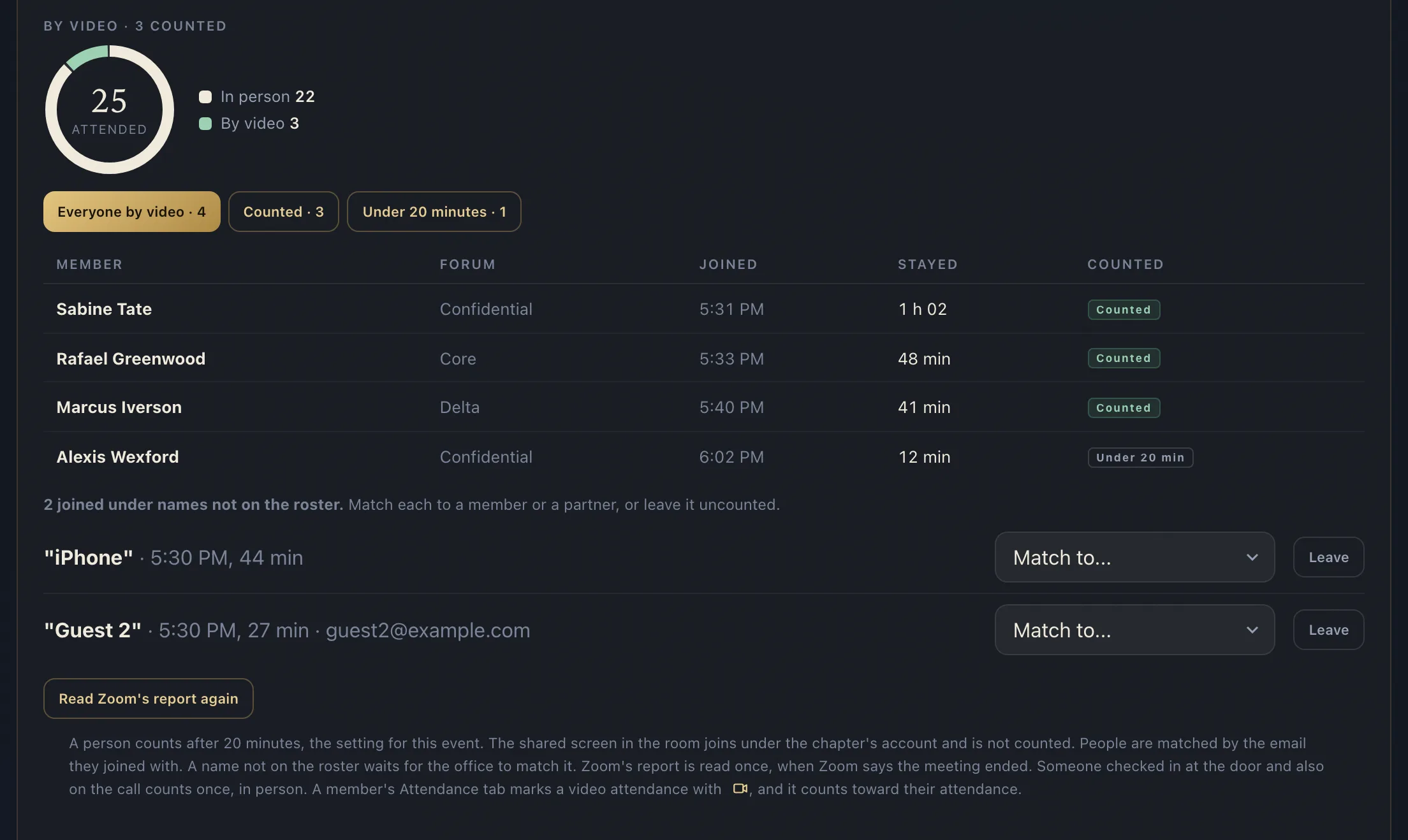
- When the meeting ends, Quorum reads Zoom’s report once. Open Attendance and the event to see who attended by video.
Quorum matches each person to the roster by the email they joined with. A name that is not on the roster waits in a list, where you match it to a member or a partner, or leave it uncounted. The chapter’s own Zoom account is never counted. Zoom can take a few minutes to build its report, and Read Zoom’s report again reads it at any time.
Record an event
- In the event’s Video section turn on Record it and choose Who may watch later.
- Record the meeting to the cloud in Zoom.
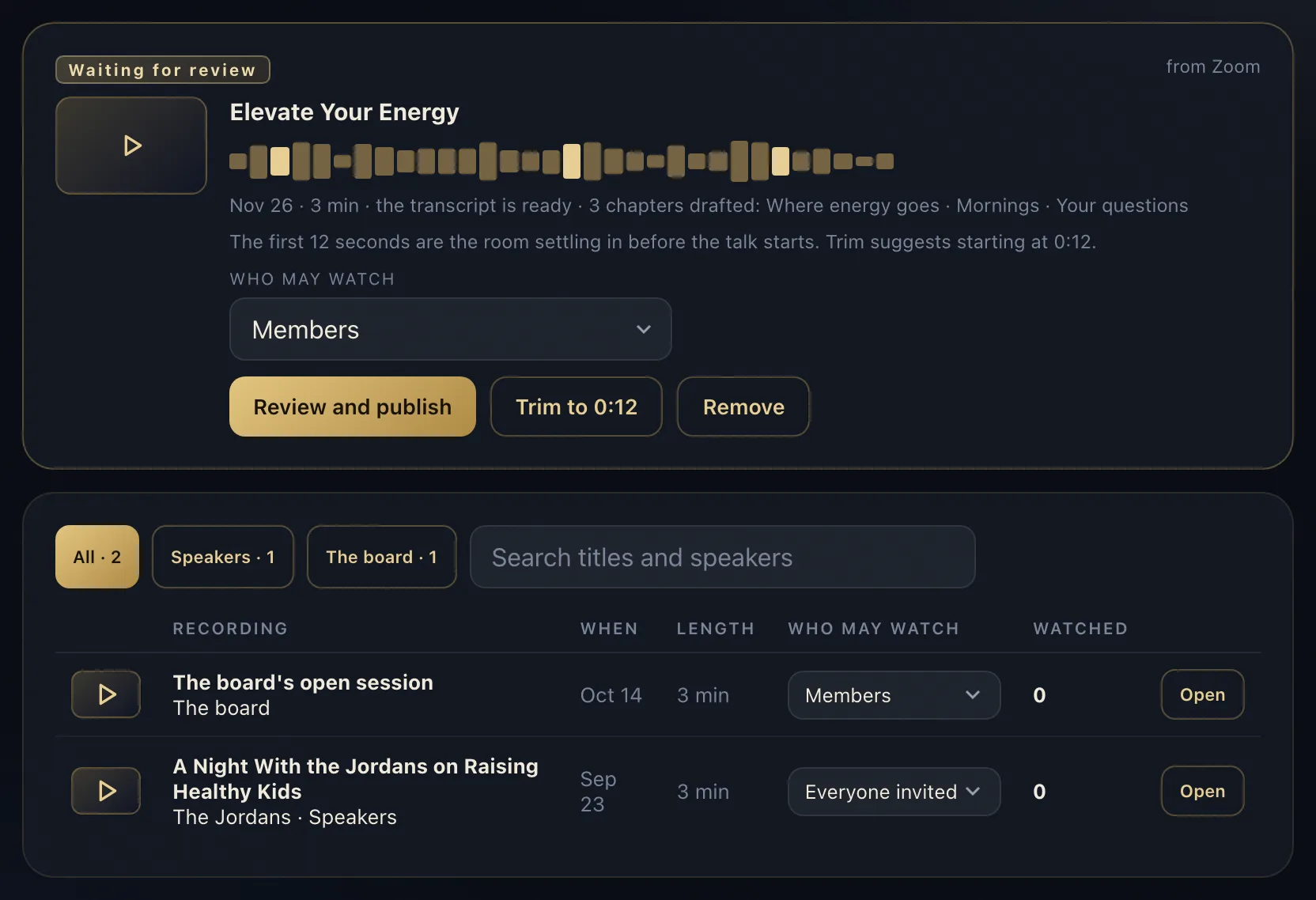
- When Zoom finishes the recording, Quorum copies it. It appears under Chapter Events, Recordings as Waiting for review, with a transcript.
- Review it and press Publish. The people you chose can then watch it in the app. Nothing is published until you press Publish.
Remove the app
You can end the connection from Quorum or from Zoom.
In Quorum
- Open Settings, then Office & connections, and open Video meetings · Zoom.
- Press Disconnect and confirm.
In Zoom
- Sign in to your Zoom account and open the Zoom App Marketplace.
- Click Manage, then Added Apps, or search for the Quorum app.
- Click the Quorum app.
- Click Remove.
After either one, Quorum deletes its sign-in tokens for the Zoom account and reads nothing more from Zoom. Attendance already counted and recordings already copied stay in your chapter’s Quorum. To delete a recording, open Chapter Events, Recordings and press Remove. To have Quorum delete everything it took from Zoom, email support@quorum.rsvp.
If something does not work
- Zoom says you cannot add the app. Sign in as the Zoom account’s owner or an admin. If your account approves apps before they are added, an admin approves Quorum in the Zoom App Marketplace first.
- The card says the sign-in did not finish. Zoom refused the sign-in on its own page. Press Connect Zoom again as the owner or an admin.
- The card reads CONNECT AGAIN. Zoom ended the sign-in, or the app was removed in Zoom. Press Connect Zoom again.
- Nobody was counted. Check that the event’s Join by video link is the meeting’s own link, that Count who attends by video is on, and that the Zoom account has a Pro plan or higher. A personal room’s link with a name in it (zoom.us/my/name) has no meeting number and cannot be matched.
- A recording did not arrive. Check that Record it is on for the event and that the meeting was recorded to Zoom’s cloud, not to a computer.
Privacy and terms
Quorum uses what it reads from Zoom for the chapter’s attendance records and recordings and for nothing else. The Privacy Policy says what Quorum holds, who processes it and how to have it corrected or deleted. The service terms are at Terms.
Support
Email support@quorum.rsvp or open Support. A chapter’s office answers for its own chapter.